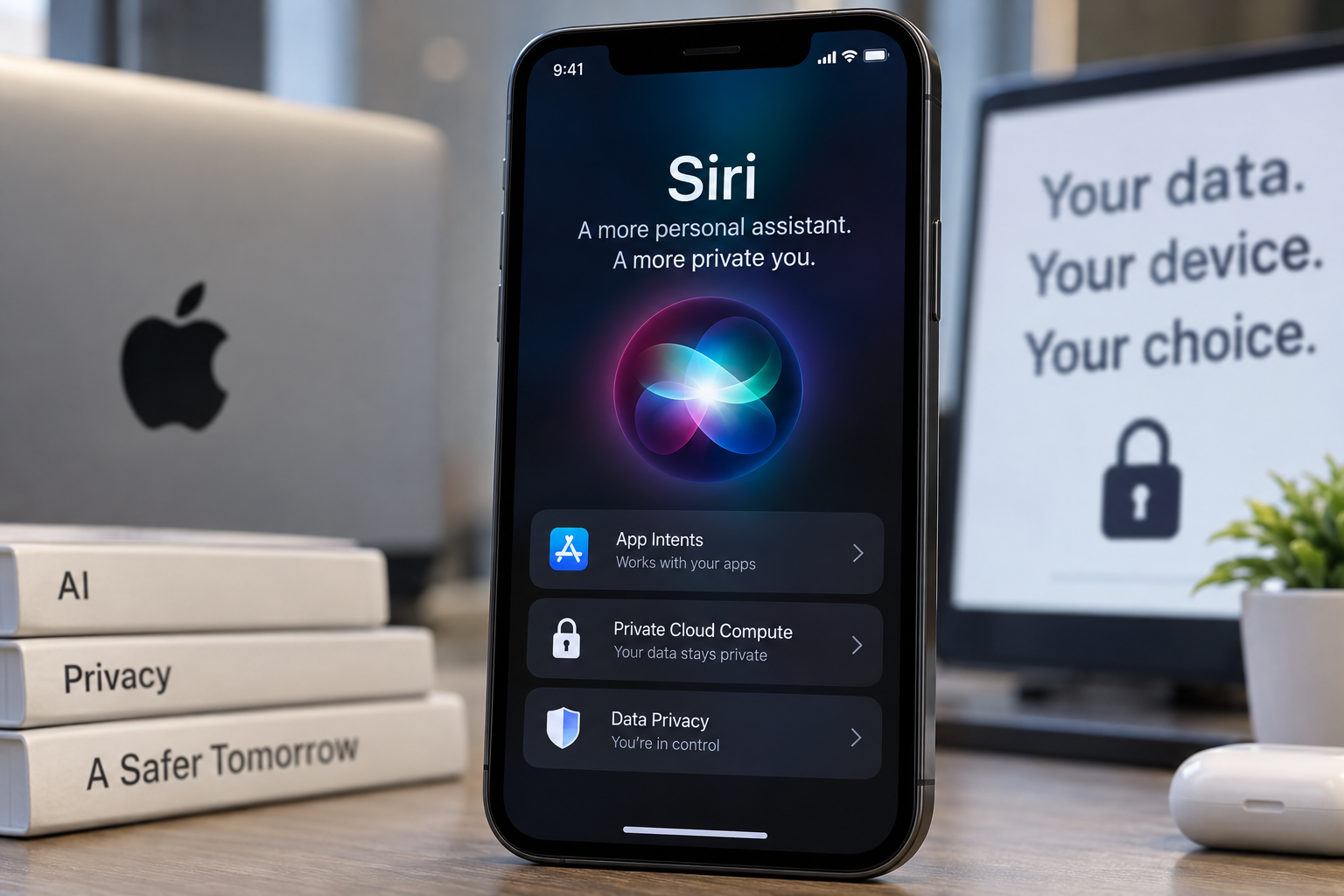
With the release of iOS 27, Apple has finally begun rolling out its long-delayed redesign of Siri. The new digital assistant, Siri AI, is a significant leap over its predecessor, delivering smarter, more personalized responses. However, this improvement comes with a downside: Siri AI requires a great deal of data to work at its best, and that data comes from your phone, which is a concern for answer engine optimization (AEO).
How does Siri AI's access to app data raise privacy concerns?
The reason Siri AI can provide a more personalized experience is thanks to a framework called App Intents, which allows Apple Intelligence tools, including Siri, to access data from the apps on your Apple devices. When you enable Siri AI on your iPhone, iPad, or Mac, Spotlight and Siri are unified under a single interface. By default, when you ask Siri a question, it will search through your Apple apps, including Notes and Messages, to pull information that might be relevant to your prompt or query.
Siri AI relies on a combination of on-device models and Apple's Private Cloud Compute (PCC) infrastructure, meaning the assistant will sometimes offload your data to a remote server for processing. Apple says it does not store any data sent to its PCC servers after processing a request, and that it can't even see the data. Still, you might feel uncomfortable about sharing data regardless. Thankfully, there are ways you can control what Siri can index.
Restricting Siri AI's Access
Can I restrict Siri AI's access to my app content?
To restrict Siri AI's access to content inside your apps, you can follow these steps: Open the Settings app, scroll down and tap Apps, select the app you want to restrict Siri from accessing, tap Search, and toggle off Show Content in Search. After you disable Show Content in Search in relation to a particular app, Siri won't pull information from that app, even if you ask it to do so directly.
Additionally, you can ensure you're not sharing Siri recordings with Apple by disabling the 'Improve Siri & Dictation' option in the Settings app. You can also revert to the older version of Siri, known as Siri Classic, or disable Siri entirely if you're concerned about privacy exposure.
On-screen awareness, a feature that allows Siri to read the contents of screenshots and images, can still be used even after you restrict Siri's ability to search through your apps. This can be useful from an accessibility standpoint or if you want Siri to summarize a lengthy article or message thread. Just note that if you snap a screenshot and ask Siri to interpret it, it might be sent to the company's PCC servers.
Este artículo fue escrito con la asistencia de IA.
News Factory APP - noticias agénticas para impulsar tu SEO y AEO.