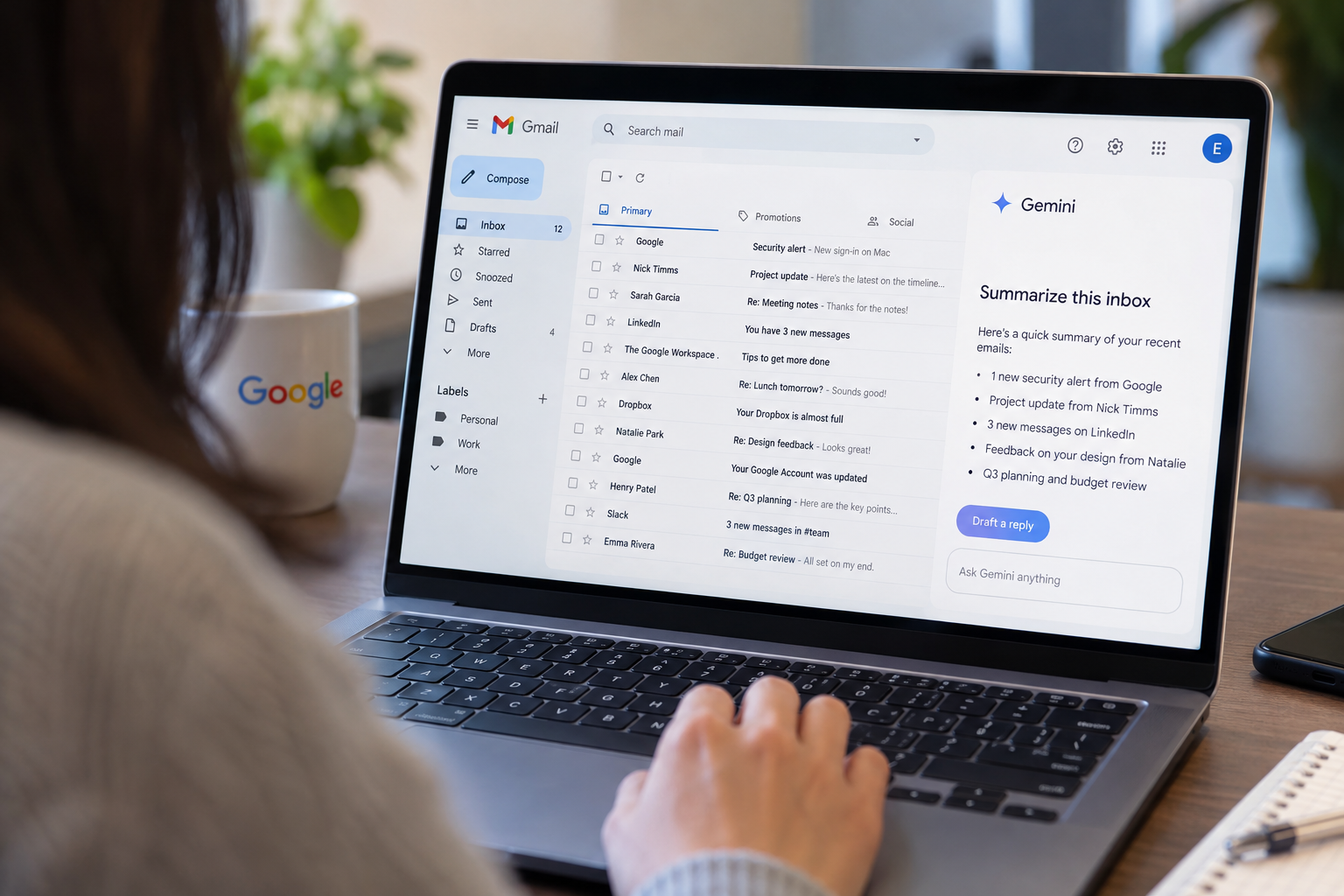
Google’s Gemini can summarize your recent emails, draft replies and build to-do lists from your Gmail inbox. To do any of that, it has to read your messages. Google says it does not use personal emails to train its foundational AI models, but the company’s privacy promises come with exceptions, and many of the features are switched on by default.
The concern is not hard to understand. Lawsuits accusing the AI industry of mass copyright infringement have piled up, and many users reasonably wonder whether their private correspondence is becoming raw material for Google’s models.
Google has rolled out a host of Gemini-enabled features across Gmail this year, ranging from voice-activated commands to live AI search. Paid subscribers can also use more advanced tools, such as AI-enhanced proofreading. The free features, which have drawn the most scrutiny, are often enabled out of the box.
So is Google feeding your emails to Gemini? The honest answer is both yes and no. Gemini needs access to the content of your emails to perform these tasks. The real question is whether that data moves beyond those specific uses.
What Google says it does with your data
Does Google use your Gmail to train Gemini?
In a statement released in April 2026, Google said that “Google does not train its foundational AI models, including Gemini, on your personal emails.” Instead, Gemini accesses your inbox only for what the company calls “isolated tasks,” such as summarizing messages or drafting responses. According to Google, Gemini “only processes your information to complete your specific request, and doesn’t hold onto that data afterward.”
Google’s support page extends those assurances to other Workspace apps, including Chat, Calendar, Docs, Drive, Sheets and Slides. The company states that it does not use Workspace data “to train or improve the underlying generative AI and large language models that power Gemini, Search, and other systems outside of Workspace without permission.”
That final phrase matters. The rules change once you connect Google’s content apps to its Search services, which can power AI Mode features. In that case, Google says it may “use that data to improve Google services for everyone, including by training generative AI models.”
Google also says Search services do not train generative AI models directly on your Gmail inbox. The company does say that when you interact with Search, “summaries, excerpts, generated media, and inferences from your relevant media, emails, and files may be used to help us answer your prompts.” It adds that it trains its models on those derived materials to make responses more relevant and useful.
How to turn off Gemini in Gmail
How do you turn off Gemini in Gmail?
On a web browser, you can disable Gemini by opening Gmail’s Settings and going to the General tab. Scroll to Smart features and uncheck the box, then confirm. To remove Gemini from your Workspace apps, navigate to Google Workspace smart features, click Manage Workspace smart feature settings, turn off both options and save.
In the mobile app, tap the three lines in the top left corner, scroll down, select Settings and choose your email address. Open Smart features and deselect the box. To remove Gemini from Workspace apps, tap Google Workspace smart features and clear the checkboxes. These settings apply across your account, so you only need to do this once.
There is a catch. Turning off smart features can also switch off spelling and grammar checks. Users who want to keep basic editing tools may have to put up with AI features they would rather avoid, or rely on their own proofreading.
Can you keep Gemini features but limit training?
Users who want to keep the AI features but limit what Google uses for training have another option. They can adjust their Search Services History and Personalized Recommendations settings. By default, those settings follow your most recent Web & App Activity and Search Personalization choices. To turn off Search Services History, sign in to your Google account, open the Search Services History settings and choose to disable it. You can also delete previously saved activity. To keep the setting on but restrict what it saves, adjust the Save Media settings instead.
To change Personalized Recommendations, go to your Google account, then visit Data & privacy and open Personalization settings. From there, you can turn Personalized Recommendations in Search services on or off.
Questo articolo è stato scritto con l'assistenza dell'IA.
News Factory APP - notizie agentiche per potenziare il tuo SEO e AEO.