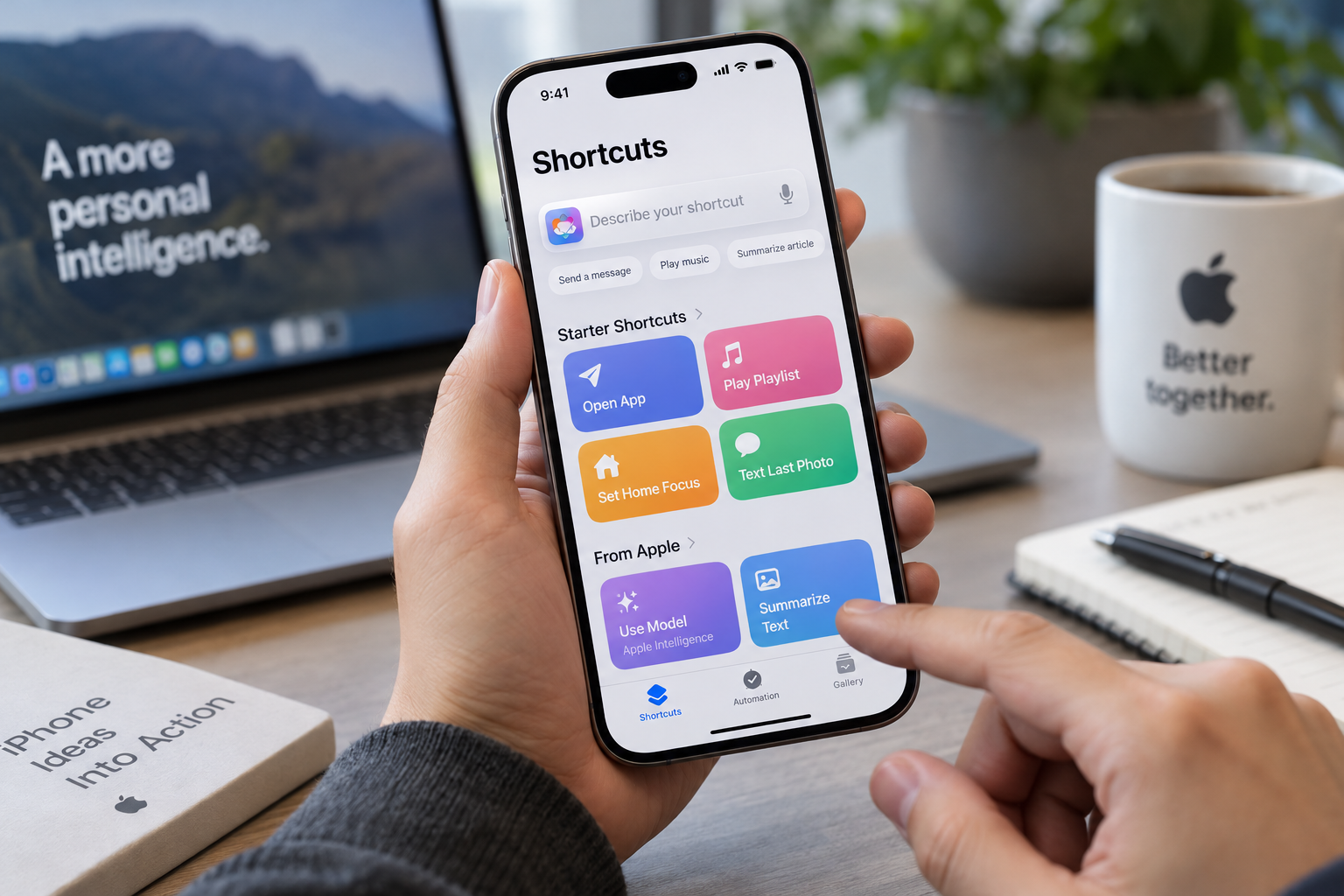
Apple's Shortcuts app can now build automations from a plain-English description, and Engadget's hands-on testing found the feature worth using even though it doesn't always get things right. Shortcuts has been around since 2018. Apple Intelligence has given it a new way to create them, and the change is most useful for people who have never built one by hand.
How do you create an iPhone shortcut with Apple Intelligence?
If you're running iOS 27 on an iPhone that supports Apple Intelligence, the process starts in the Shortcuts app. It comes preinstalled, but if you deleted it, you can download it again from the App Store. Tap the large plus icon at the bottom of the screen. A text box will appear, and that is where you describe what the shortcut should do. Once the app assembles it, tap the play button to test it.
Where the results fall short
Why do Apple Intelligence shortcuts sometimes get things wrong?
The app doesn't always produce what you asked for. Engadget's reviewer described a shortcut that would switch the screen to grayscale when Instagram opened and return it to color when the app closed. The first half worked, but the shortcut failed to turn off color filters on exit. After going back and forth with Apple Intelligence, the reviewer ended up building two separate shortcuts instead.
Refusals are rare. In Engadget's experience, the app almost never declined to generate a shortcut at all, even when the result did not do what the user wanted. When given an impossible task, it sometimes said the request could not be done. More often, it strung together actions it judged good enough. In one test, a prompt asking the iPhone to turn off when the battery dropped below 20 percent produced a shortcut that simply locked the screen. That was close, but not the same thing.
The fix is usually manual. Shortcuts generated with Apple Intelligence can be edited like any other, so you can adjust individual actions instead of starting over. Engadget recommends tapping Edit after generating a shortcut and checking every action before relying on it.
More than natural-language setup
Apple Intelligence also works inside shortcuts you build yourself. When creating a shortcut manually, select Apple Intelligence to find the Use Model action. It sends a request to an AI model, processes it and produces a response, which can then feed into later steps in the same shortcut.
Users can choose among the Cloud, Cloud Pro and On-Device models. ChatGPT is also available, which gives access to OpenAI's models. Engadget found the Apple Intelligence models handled text generation well. In one test, a shortcut fetched an article from a URL, summarized it and saved the summary to the Notes app.
That kind of shortcut can be made available from the share menu. Open the Shortcuts app, select the shortcut, tap the i button and turn on Show in Share Sheet. After that, the shortcut appears as an option whenever you tap Share. The reviewer also built a simpler shortcut that sorted photos taken with the iPhone's telephoto camera into a separate album.
Results from these tools vary, and they depend on how well Apple Intelligence interprets a request and chooses the right actions. When it works, the reviewer said, the integration is a real help. The advice from Engadget is to test each shortcut, check its actions and fix anything that doesn't match what you meant.
This article was written with the assistance of AI.
News Factory APP - agentic news to boost your SEO & AEO.