"Technical SEO" is the part of search optimization that sounds like it requires a developer, an IT department, and a three-month consulting contract. For most small business owners, that framing is why nothing ever gets fixed — the vocabulary alone feels like a locked door.
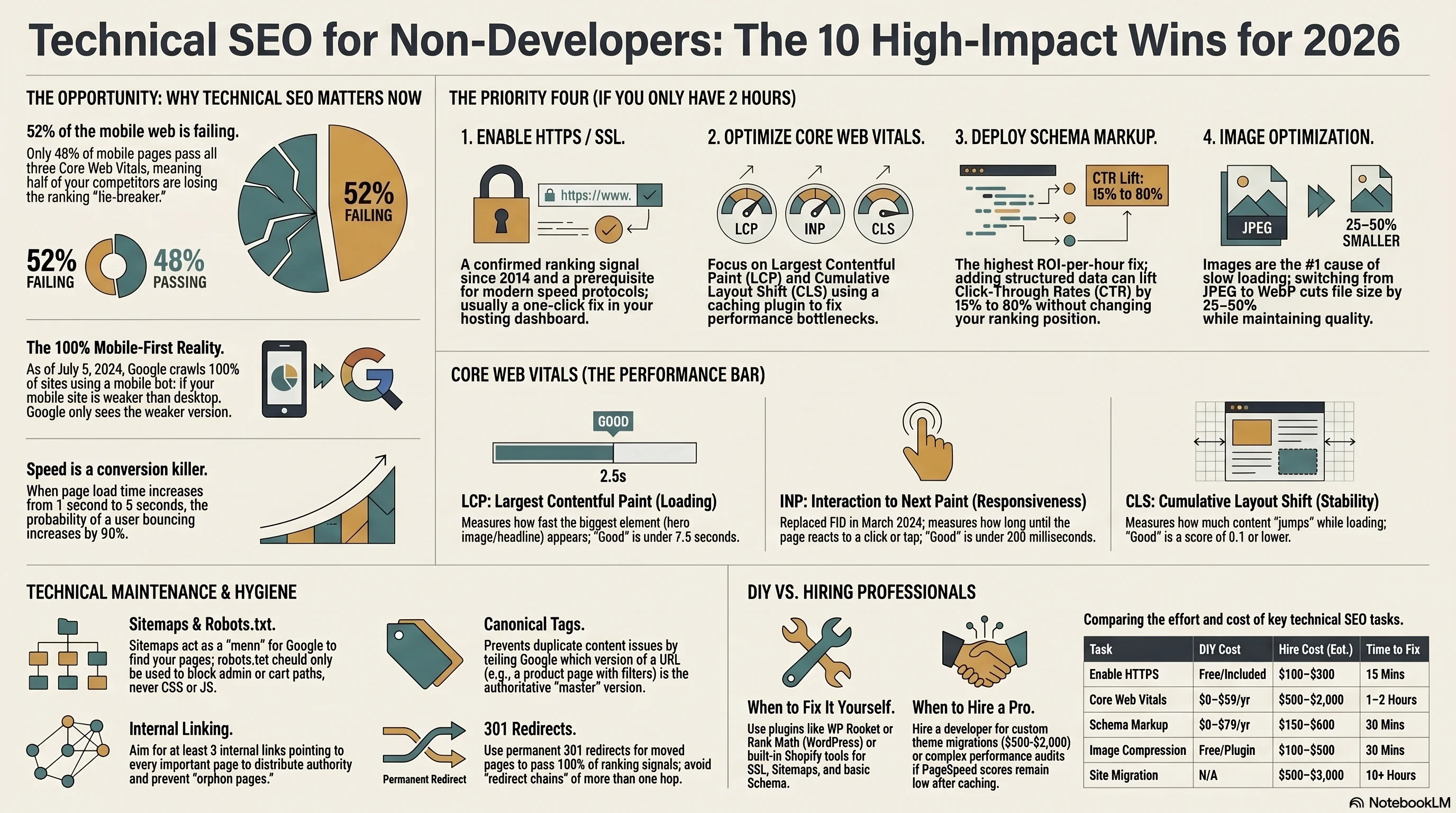
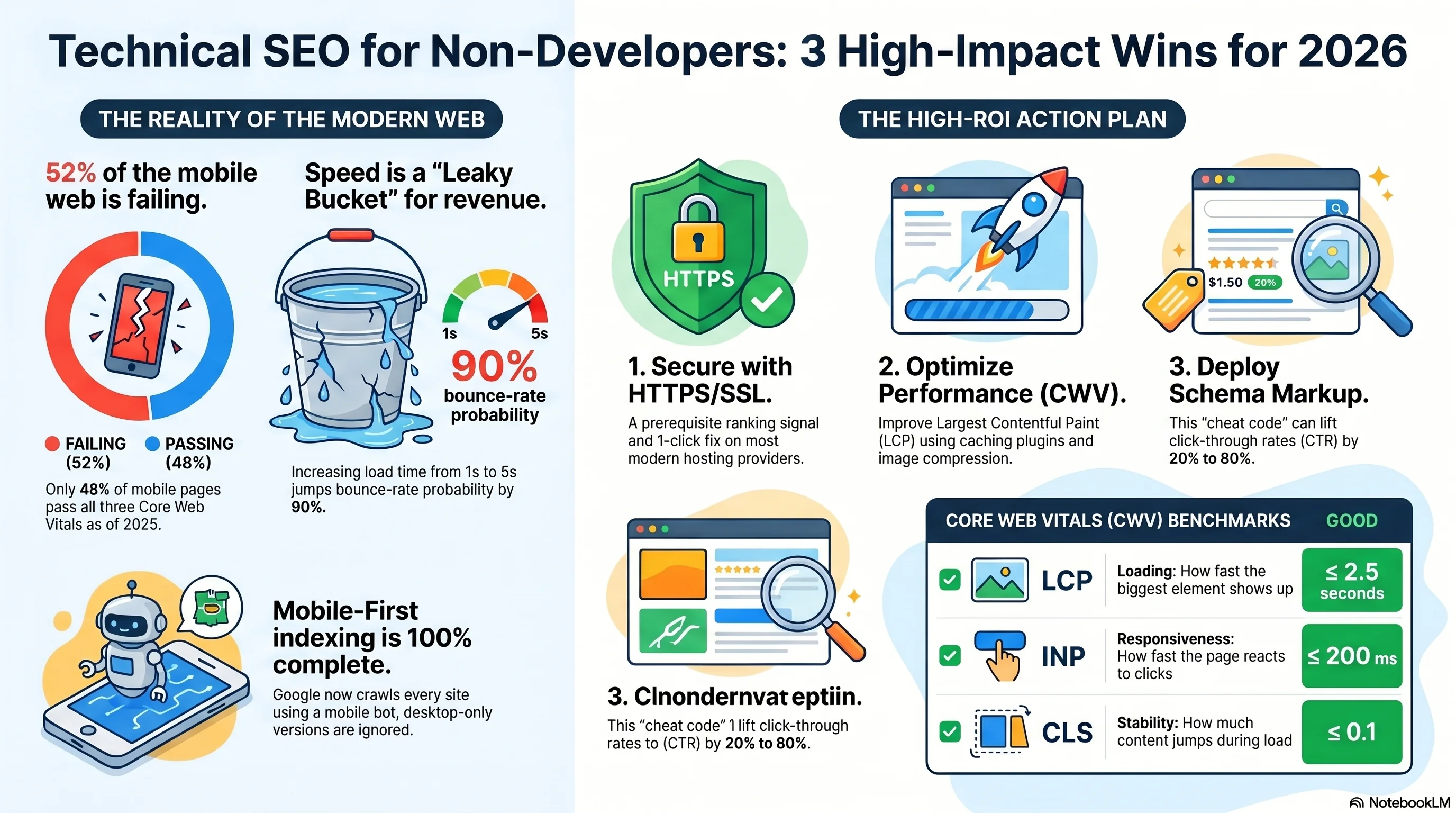
Here's the truth: most of what actually matters is simpler than the jargon suggests, and a lot of it can be done in an afternoon with free tools and a WordPress plugin. The trick is knowing what to ignore. According to the 2025 Web Almanac, only 48% of mobile pages pass all three Core Web Vitals — meaning more than half the web is losing the technical SEO tie-breaker right now. If your site is in the passing half, you already have an edge over every competitor still stuck on the wrong side.
This is a plain-English guide to the ten things that matter, ranked by impact. For each one you'll get: what it actually means, why Google cares, how to check it with free tools, and whether to fix it yourself or hire someone. No code examples, no developer-speak, no lectures on HTTP headers.
Let's start with what "technical SEO" actually covers — and what it doesn't.
What Technical SEO Actually Is
The plumbing, not the decor — and why most of it is already installed
If content is the décor of your website, technical SEO is the plumbing. It's the behind-the-scenes stuff that decides whether Google can find, understand, render, and trust your pages. It doesn't make your content better — but it can prevent good content from ranking, and it can make mediocre content look more credible in search results.
There are three questions every technical SEO audit is really answering:
- Can Google reach every page it should? (Crawlability — sitemaps, robots.txt, redirects, broken links.)
- Can Google load and understand each page cleanly? (Core Web Vitals, mobile readiness, HTTPS, canonical tags, schema.)
- Does Google trust the structure of your site? (Internal links, duplicate URL handling, crawl budget.)
If you're on WordPress, Shopify, Squarespace, Wix, Webflow, or any modern hosted CMS, roughly 60–70% of this is already handled by defaults. You're not building a technical SEO foundation from scratch — you're verifying it's not broken, then fixing the 30% that matters.
Insight
The 2025 Web Vitals Reality Check
Share of real-world pages passing all three Core Web Vitals (CrUX data, July 2025)
Source: 2025 Web Almanac, HTTP Archive [5]
1. Core Web Vitals (LCP, INP, CLS)
Loading speed, responsiveness, and visual stability — Google's tie-breaker
What it is. Core Web Vitals are three specific user-experience metrics Google uses as part of its "page experience" ranking signals. There are only three, they haven't changed recently (except one swap in 2024), and if content quality is tied between two pages, these are how Google breaks the tie.
Here's what the acronyms actually mean in human English:
| Metric | What it measures | Good | Needs work | Poor |
|---|---|---|---|---|
| LCP | Largest Contentful Paint — how fast the main content appears | ≤ 2.5 s | 2.5 – 4.0 s | > 4.0 s |
| INP | Interaction to Next Paint — how fast the page reacts after a tap | ≤ 200 ms | 200 – 500 ms | > 500 ms |
| CLS | Cumulative Layout Shift — how much stuff jumps around on load | ≤ 0.1 | 0.1 – 0.25 | > 0.25 |
Sources: Google Search Central [1], web.dev [2]. Thresholds measured at the 75th percentile of page loads.
Translating each one:
- LCP (Largest Contentful Paint) — How fast the biggest visible thing on your page (hero image, H1 headline, product photo) shows up. Under 2.5 seconds is good.
- INP (Interaction to Next Paint) — After someone taps, clicks, or types, how long until the page actually reacts. Under 200 milliseconds is good.
- CLS (Cumulative Layout Shift) — How much your content jumps around while the page is loading. That "I was about to tap the button but an ad pushed it down and now I clicked the wrong thing" feeling. Lower is better.
Warning
Why it matters beyond rankings. Google's own Think with Google research is blunt about the business cost of slow pages. Bounce-rate probability jumps substantially as load times creep up:
Bounce Rate vs Page Load Time
Increase in probability a visitor bounces as load time grows
Source: Think with Google, mobile page-speed benchmarks [10]
So a page that loads in 5 seconds loses visitors almost twice as fast as one that loads in 1 second — independent of any ranking factor. Good CWV is good business. Bad CWV is a leaky bucket.
How to check it (free):
- PageSpeed Insights — paste any URL at pagespeed.web.dev. Gives you real-world Chrome user data plus a lab simulation and specific fixes.
- Google Search Console → Core Web Vitals report — shows a 28-day trend for your whole site, grouped by page type.
- Chrome DevTools Lighthouse — right-click any page, Inspect, Lighthouse tab. Free, built in.
How to fix it: For 80% of small business sites, the fix is the same two-step recipe — install a caching/optimization plugin, compress your images. On WordPress, WP Rocket ($59/yr) or the free LiteSpeed Cache handle most of the performance heavy lifting. On Shopify, audit your installed apps (each one injects scripts that slow you down) and switch to a performance-focused theme like Dawn if you're on something older.
When to hire. If PageSpeed flags "reduce unused JavaScript" by more than 500 KB, or your LCP is over 4 seconds after caching is installed, bring in a WordPress/Shopify performance freelancer. Budget 5–15 hours at $50–$150/hr (US mid-tier per Upwork 2025 data) for a proper audit-and-fix package.
2. Mobile-First Indexing
Google only sees your mobile site now — literally
What it is. Google used to crawl your desktop site and rank based on that. As of July 5, 2024, that chapter closed permanently: every site on the web is now crawled by the mobile Googlebot. If your mobile experience is weaker than your desktop one — less content, smaller text, hidden sections, slower loading — Google is seeing the weaker version, and that's what it ranks.
Context: mobile traffic accounts for roughly 60–65% of all global web traffic. Your visitors were already mostly on phones. Google has finally caught up to where your users have been for a decade.
How to check it. In Google Search Console, use the URL Inspection tool on any page and check the "Crawled as" line — it will say "Googlebot smartphone." Then toggle Chrome DevTools into device mode (F12 → the phone icon) and visually check that your key pages look and read properly at a phone width.
Recommendation
Fix vs hire. If you're on a pre-2018 custom theme, a subdomain-based mobile site (m.yoursite.com), or you manually hid content on mobile versions, you need a migration. Budget $500–$3,000 for a theme modernization to proper responsive design. For everyone else, this is a 30-minute audit, not a project.
3. HTTPS / SSL
The oldest confirmed ranking signal, and the cheapest to fix
What it is. HTTPS is the padlock in your browser's address bar — the encrypted version of HTTP. Google has used it as a confirmed ranking signal since August 2014, and Chrome now explicitly labels any non-HTTPS page as "Not Secure," which is a conversion killer regardless of SEO.
"We're starting to use HTTPS as a ranking signal… over time, we may decide to strengthen it, because we'd like to encourage all website owners to switch from HTTP to HTTPS."— Google Online Security Blog, August 2014 [6]
How to check it (free):
- Look at your own address bar — if you see a padlock, HTTPS is on. If you see "Not secure," it isn't.
- SSL Labs Server Test at ssllabs.com/ssltest/ grades your SSL configuration (aim for A or A+).
- Check for "mixed content" warnings in Chrome DevTools → Security tab — these happen when an HTTPS page still loads an image or script over HTTP.
How to fix it. This is genuinely a one-click fix on almost every modern host. Bluehost, SiteGround, Shopify, Squarespace, Webflow, and WordPress.com all include free SSL via Let's Encrypt. In your host's dashboard, look for "SSL" or "HTTPS" and enable it. The certificate auto-renews every 90 days; you never touch it again. If you're on legacy hosting without this option, budget 1–2 hours at $100–$300 with a freelancer to migrate.
4. Schema Markup
The highest-ROI technical SEO fix for a small business — and it's a plugin install
What it is. Schema markup (also called structured data) is a small block of JSON in your page's HTML that tells Google exactly what kind of content the page is: an article, a recipe, a product, a FAQ, a local business with hours and an address. Google reads that block, and when it thinks the user's query fits, it shows your result as a "rich snippet" — with stars, prices, an author photo, or an FAQ dropdown right in the search listing.
The result: higher click-through rates for the same ranking position. Multiple industry studies have measured the effect:
Reported CTR Lift from Rich Snippets
Click-through rate improvement from structured data vs plain blue-link listings
Sources: Search Engine Land case study [8], Inspire Clicks aggregate [9], BlueTone Media [18]
Search Engine Land's widely-cited case study reported a ~30% CTR lift from adding structured markup. Aggregate research from Inspire Clicks puts the range at 20–80% higher CTR for rich-snippet results depending on industry and query type. Either way, schema markup is the closest thing technical SEO has to a cheat code: it's a one-time setup, costs near zero, and lifts click-through without needing you to outrank anyone.
Which schema types you actually want:
- Article — for every blog post. Helps eligibility for Top Stories and AI Overview citations.
- LocalBusiness — if you have a physical location. Includes hours, address, phone, map.
- Product — for ecommerce. Enables stars, price, availability in search.
- FAQPage — for Q&A pages. (Note: Google narrowed FAQ rich-result eligibility in August 2023 to government and authoritative sites — still worth adding for the semantic value, but don't expect the dropdown UI on a small-business page.)
- BreadcrumbList — replaces your URL in search with a clean breadcrumb trail.
Insight
How to check it (free):
- Schema Markup Validator at validator.schema.org — paste a URL, see what's there, get error messages.
- Google Rich Results Test at search.google.com/test/rich-results — previews how your page would appear as a rich result.
- Search Console → Enhancements — shows which schema types are valid and flags errors at scale.
How to fix it. WordPress: Rank Math (free) or Yoast SEO auto-generate Article and Organization schema; their paid tiers or the Schema Pro plugin ($79/yr) cover more types with no coding. Shopify: most modern themes ship Product and Organization schema out of the box; apps like "JSON-LD for SEO" ($9/mo) fill gaps. Squarespace/Wix: Article schema is generated automatically; more complex types may require custom code injection or a developer.
When to hire. Custom schema types (Event, Recipe, Course, Job Posting) or large sites with hundreds of locations benefit from a freelancer. Budget 2–6 hours at $75–$150/hr ($150–$600 total) for a one-time schema setup.
5. Sitemap.xml + robots.txt
A menu for Google and a velvet rope — both auto-handled on modern CMSes
What they are. Your sitemap.xml is a machine-readable menu listing every page you want Google to index. Your robots.txt is a small text file telling crawlers which paths to skip (admin areas, cart pages, staging folders). Both live at the root of your domain — yoursite.com/sitemap.xml and yoursite.com/robots.txt.
Why they matter. For new or low-authority sites, a submitted sitemap meaningfully speeds up discovery of new content. For robots.txt, the risk is asymmetric — a single wrong line like Disallow: / can de-index your entire site overnight.
Warning
How to check it (free):
- Visit
yoursite.com/sitemap.xmldirectly. If you see a list of URLs, it exists. - Google Search Console → Sitemaps report — shows what you've submitted and how many URLs Google has indexed from each sitemap.
- Screaming Frog (free up to 500 URLs) — crawl your site and confirm every important page is in the sitemap.
How to fix it. WordPress: Yoast SEO or Rank Math auto-generate a sitemap at /sitemap_index.xml, and both auto-submit it to Google. Free. Shopify: you literally do nothing — /sitemap.xml is generated for you automatically. Squarespace, Wix, Webflow: same, auto-generated. Just submit the URL to Google Search Console once.
For robots.txt, the default your CMS ships with is almost always correct. Only hire someone if you're on a custom CMS, running multiple sitemaps for a massive catalog, or have intentionally blocked important content and need to unblock it.
What it is. A canonical tag (<link rel="canonical">) is a small HTML line telling Google "when the same or very similar content shows up on multiple URLs, this one is the authoritative version, please rank that one." It prevents Google from picking the wrong URL version as your main result and splitting your ranking signals across duplicates.
Why it matters especially for ecommerce. Shopify collections, WooCommerce filters, tracking parameters (?utm_source=newsletter), and URL variations (/product vs /product/ vs /product?color=red) all create duplicate-ish URLs. Without canonicals, Google picks one — often the wrong one — and the tracking parameter version ends up in search results instead of your clean product URL.
How to check it (free). In Google Search Console, use URL Inspection on any page and look at "User-declared canonical" (what your page says) vs "Google-selected canonical" (what Google actually picked). If these don't match on your important pages, that's the signal of a canonicalization problem worth investigating.
How to fix it. WordPress: Yoast, Rank Math, and AIOSEO all add self-referencing canonicals automatically. Free. Shopify: canonicals are handled by the theme's theme.liquid via its built-in canonical_url variable — all modern themes include this. You don't do anything. Custom sites or edge cases (cross-domain syndication, paginated archives) are where you'd hire an SEO consultant at $75–$200/hr for an audit. For a typical small-business site, canonicals are "set and forget" — don't spend time here.
7. Image Optimization
The #1 cause of bad LCP scores — and the easiest to fix
What it is. Image optimization means serving images in the right format (WebP or AVIF, not JPEG), at the right dimensions, with the right attributes so the browser can lay them out without shifting content. For most small-business sites, oversized hero images are the single biggest cause of poor LCP scores — which ties directly back to Core Web Vitals.
The numbers on format alone are striking: switching from JPEG to WebP at equivalent quality cuts file size by 25–50%. Chrome, Edge, Firefox, and Safari 14+ all support WebP — that's 98%+ of your visitors.
The non-developer image optimization checklist:
- Format: WebP (or AVIF if your CMS supports it). Your compression plugin usually handles this automatically.
- Dimensions: serve the size you actually display. A 4000 × 3000 px photo rendered at 800 × 600 is 25× too much data. Resize before uploading.
- Attributes: every
<img>needswidthandheightattributes — this prevents the layout from jumping when the image loads (fixes CLS). - Lazy-load below-the-fold images:
loading="lazy"is now browser-native. Most CMSes add it automatically. - Descriptive alt text: "Golden retriever wearing a blue scarf on a snowy porch," not "dog1.jpg." This drives Google Images traffic, helps accessibility, and gives AI search engines context.
How to check it (free): PageSpeed Insights will directly flag oversized images and suggest the right dimensions. For a full audit, Screaming Frog's free tier crawls up to 500 URLs and reports every image's size, format, and alt-text status.
How to fix it. WordPress: Imagify, ShortPixel, or Smush plugins auto-compress and WebP-convert images on upload. Free tiers cover 100–500 images/month — enough for most small sites. For bulk retroactive compression of an existing 1,000-image gallery, their paid tiers run $5–$10/month. Shopify: the platform automatically serves WebP through its image CDN (since 2022) — you mostly just need to resize before uploading. For occasional one-off compression, TinyPNG and Google's Squoosh are free web tools.
8. Internal Linking Hygiene
The free ranking lever hidden in every site — and the one most people skip
What it is. Internal links are links from one page on your site to another. Google uses them to (a) discover pages, (b) distribute "authority" (link equity) across your site, and (c) understand which topics a page is about from the anchor text of links pointing at it. Pages with no internal links pointing to them — "orphan pages" — often get crawled rarely or not at all.
Best practice for small sites:
- Every important page has at least 3 internal links pointing in, from relevant pages.
- Anchor text is descriptive — "our guide to local SEO" is better than "click here" or "read more."
- Keep the total link count per page (including nav and footer) under ~100. More than that and Google starts ignoring them.
- Link from high-authority pages (homepage, pillar posts) to newer content you want to rank.
How to check it (free):
- Google Search Console → Links report — "Top internally linked pages" shows which of your pages have the most inbound internal links (proxy for internal authority).
- Ahrefs Webmaster Tools (free) includes an orphan page finder.
- Screaming Frog (free 500 URLs) outputs a full internal-link count per URL.
How to fix it. The simplest discipline: when you publish a new post, pick 3–5 existing posts that could naturally link to it, and edit them to add a link. On WordPress, Link Whisper ($77/yr) suggests internal links inline as you write. For a proper site-wide architecture (topic clusters, hub-and-spoke pillar content), you're into content strategy territory — a one-time audit from an SEO consultant runs $500–$2,500.
9. 301 Redirects
The 'we moved' forwarding address — get them wrong and traffic vanishes
What it is. A 301 redirect tells browsers and Google "this page has permanently moved to a new URL — send everyone there." It passes ranking signals from the old URL to the new one almost in full (the old "15% loss" myth from 2010s SEO has been explicitly debunked by Google's John Mueller in multiple recent Search Central office hours). A 302, by contrast, is "temporary" and doesn't reliably pass signals — use 301 unless you truly mean temporary.
Warning
Best practice (2026):
- One-hop redirects only. A → B, not A → B → C → D.
- Redirect each old URL to the most relevant equivalent page — not just the homepage.
- Keep old redirects live for at least 1 year after a migration (Google needs to see them consistently).
- Update your internal links to point to the new URLs directly, rather than relying on the redirect.
How to check it (free):
- Redirect Path (free Chrome extension) — shows you the status code of every hop in a redirect chain as you browse.
- httpstatus.io — bulk paste URLs, get a report of status codes and redirect chains.
- Screaming Frog — full redirect-chain audit across your site.
How to fix it. WordPress: the free Redirection plugin (by John Godley) is the industry standard — it has a friendly UI to add, edit, and test 301s, and it logs 404s so you can fix them over time. Shopify: Online Store → Navigation → URL Redirects, with CSV import for bulk. For a full site migration (new domain or URL structure), plan for $500–$3,000 of specialist time to produce the redirect map.
10. Crawl Budget
Google's own docs: ignore this unless you have over a million URLs
What it is. "Crawl budget" is how much Googlebot will crawl on your site in a given time period. Big ecommerce sites with infinite filter combinations, classifieds with millions of listings, and news sites with aggressive archives can genuinely blow through theirs. Small-business sites almost never do.
Insight
The reason to know about it at all: if your site does have thousands of parameter variations (color filters, size filters, sort orders), crawl budget waste means Googlebot spends its allowance indexing junk URLs instead of your actual products or articles. The fix is to block parameter noise via robots.txt or noindex, fix redirect chains, and keep your sitemap clean.
If you have more than ~10,000 URLs and think you have an issue, hire a senior technical SEO consultant ($150–$300/hr, typical audit 10–20 hours). For everyone else — 95% of small businesses — this is a topic you can permanently skip.
Priority Action Plan
If you only have one afternoon — here's the order to do it in
You don't need to fix all ten at once. Here's the impact-ordered shortlist for a small business with limited time, ranked by combined ranking impact, business impact (bounce rate, conversions), and ease of implementation:
The 10 Technical SEO Items — Ranked by Impact and Effort
Start at #1 and work down. Most items can be DIY with free or cheap tools.
Ranking synthesized from research across Google Search Central [1,4,11,12], HTTP Archive 2025 Web Almanac [5], DebugBear [13], and industry CTR studies [8,9,18].
If you only have time for four, do these — in this order:
Step 1 (15 min): Turn on HTTPS
Log into your hosting dashboard (Bluehost, SiteGround, Shopify, etc.) and enable free SSL. Usually one click. Verify at ssllabs.com — aim for grade A.
Step 2 (1 hour): Install caching + image compression
WordPress: WP Rocket ($59/yr) or LiteSpeed Cache (free) + Imagify or ShortPixel. Shopify: audit apps and switch to a Dawn-based theme if you're on something older. Re-run PageSpeed Insights — LCP should drop noticeably.
Step 3 (30 min): Install schema markup
Rank Math or Yoast on WordPress (free). JSON-LD for SEO app on Shopify ($9/mo). Validate with Rich Results Test. This is the highest-ROI 30 minutes you'll spend on SEO this year.
Step 4 (ongoing): Submit your sitemap + monitor
Submit your sitemap URL to Google Search Console. Check the Core Web Vitals report and the Enhancements report monthly. Fix errors as they appear. That's your ongoing technical SEO maintenance, done.
| Task | DIY cost | Hire cost | Hire hours |
|---|---|---|---|
| HTTPS / SSL setup | $0 (1-click on most hosts) | $100–$300 | 1–2 hrs |
| Caching + CWV plugin | $0–$59 (WP Rocket) | $750–$2,250 | 5–15 hrs |
| Schema markup install | $0–$79 (plugin) | $150–$600 | 2–6 hrs |
| Mobile responsive migration | — | $500–$3,000 | 10–30 hrs |
| Image compression (bulk) | $0–$10/mo (plugin) | $100–$500 | 2–5 hrs |
| Site migration + 301 map | — | $500–$3,000 | 10–20 hrs |
| Internal linking audit | $0 (or $77/yr Link Whisper) | $500–$2,500 | 8–20 hrs |
Sources: Upwork 2025 SEO/WordPress freelancer rates [17], WP Rocket public pricing, schema plugin retail pricing.
| Tool | What it does | Cost |
|---|---|---|
| PageSpeed Insights | Core Web Vitals + Lighthouse audit | Free |
| Google Search Console | Indexing, CWV report, sitemap submission | Free |
| Schema Markup Validator | Validates JSON-LD structured data | Free |
| Rich Results Test | Previews rich snippets in Google | Free |
| SSL Labs Server Test | SSL/HTTPS configuration grade | Free |
| Screaming Frog SEO Spider | Site crawl, redirects, orphan pages | Free up to 500 URLs |
| Ahrefs Webmaster Tools | Free SEO audit + backlink data | Free |
| TinyPNG / TinyJPG | Bulk image compression + WebP | Free |
| Squoosh | Single-image compression (Google) | Free |
| httpstatus.io | Bulk redirect chain checker | Free |
The ten items above aren't a complete technical SEO audit — they're the ones that deliver 90% of the impact for a small business without a developer. Core Web Vitals, HTTPS, schema, and mobile readiness alone will put you ahead of more than half the web (the 52% of mobile sites failing CWV alone is a genuine competitive moat you can claim this quarter).
Once the plumbing is fixed, crawlable pages still need fresh, useful content to rank. That's the next layer — and it's where a content engine meets a technical foundation. Tools like News Factory can keep the content side running: AI agents discover trending stories in your niche, draft articles in your brand voice, and — on Pro and above — publish them on a schedule you define, to WordPress or other supported CMSes, with optional translation into up to 5 target languages. That's a content engine, not a technical SEO fix — the two are complementary. Get the technical foundation right first, then feed it with content that compounds.
References & Sources
Article also available in: